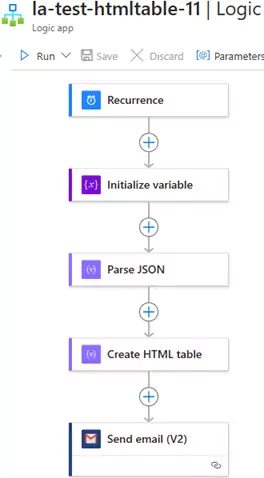
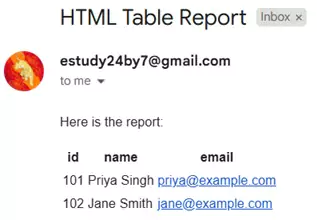
To create a Logic App workflow that uses a Recurrence trigger, initializes a variable with JSON data, creates an HTML table, and sends an email with the table, follow the step-by-step guide below.
Step-by-Step Workflow
Step1: Create a Logic App
Go to the Azure portal.
Click on Create a resource > Integration > Logic App.
Provide a name, subscription, resource group, and location for your Logic App.
Click Review + create and then Create.
Step 2: Add a Recurrence Trigger
Open your Logic App in the designer.
Search for the Recurrence trigger and add it.
Configure the recurrence interval (e.g., every day, every hour, etc.).
Interval: 1
Frequency: Day (or Hour, depending on your requirement)
Step 3: Initialize a Variable with JSON Data
Add a new action after the Recurrence trigger.
Search for Initialize variable and add it.
Configure the variable:
Name: jsonData
Type: String
Value: Paste your JSON data as a string. For example: