Creating a Logic App that showcases the use of all variable types
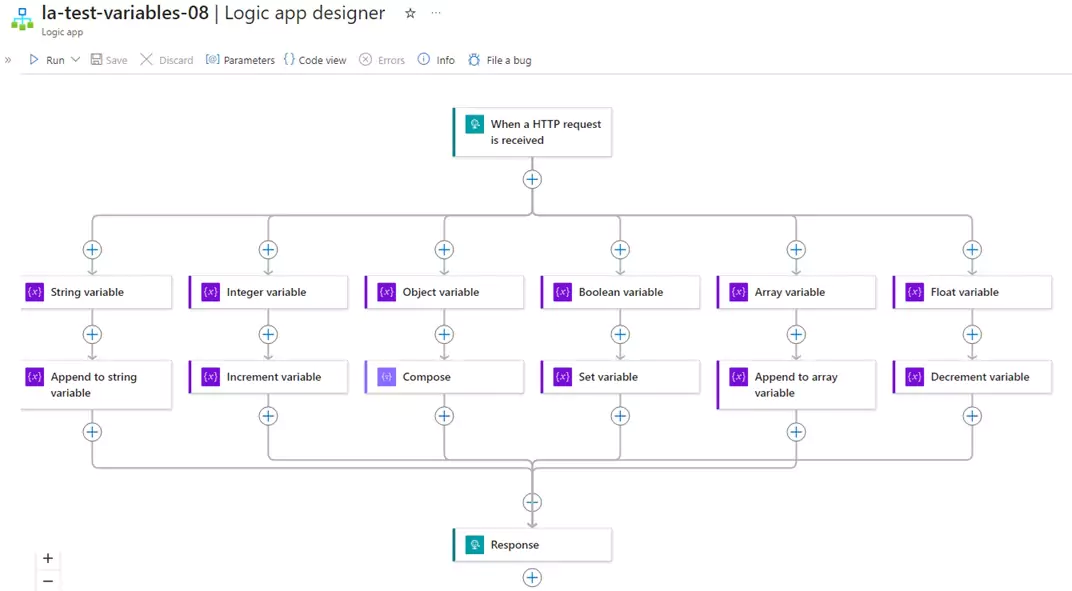
Creating a Logic App that demonstrates the usage of all variable types (string, integer, boolean, array, float, and object) involves initializing, manipulating, and using these variables within the workflow.
Steps to Create a Logic App with All Variable Types
- Create a Logic App:
- Go to the Azure portal.
- Click on “Create a resource” and search for “Logic App”.
- Follow the prompts to create a new Logic App.
- Add a Trigger:
- Open the Logic App in the designer.
- Add a trigger to start the workflow. For example, use an HTTP Request trigger to start the workflow manually.
- Initialize Variables:
- Add actions to initialize variables of different types:
- String: A text variable.
- Integer: A numeric variable.
- Boolean: A true/false variable.
- Array: A list of items.
- Object: A JSON object.
- Float: A decimal variable.
- Add actions to initialize variables of different types:
- Manipulate Variables:
- Add actions to modify or use the variables:
- Append to a string.
- Increment an integer.
- Toggle a boolean.
- Add items to an array.
- Update properties of an object.
- Decrement an decimal.
- Add actions to modify or use the variables:
- Output Variables:
- Use the Response action to return the final values of all variables.
Example Workflow
Trigger:
- Use a HTTP Request trigger to run the workflow manually.
2. Initialize Variables:
- Add an Initialize variable action for each variable type:
- String Variable:
- Name:Â
myString - Type:Â
String - Value:Â
"Hello,"
- Name:Â
- Integer Variable:
- Name:Â
myInteger - Type:Â
Integer - Value:Â
10
- Name:Â
- Boolean Variable:
- Name:Â
myBoolean - Type:Â
Boolean - Value:Â
true
- Name:Â
- Array Variable:
- Name:Â
myArray - Type:Â
Array - Value:Â
["Apple", "Banana", "Cherry"]
- Name:Â
- Object Variable:
- Name:Â
myObject - Type:Â
Object - Value:Â
{ "name": "John", "age": 30, "isActive": true }
- Name:Â
- Float Variable:
- Name:Â
myFloat - Type:Â
Float - Value:Â
12.34
- Name:Â
- String Variable:
3. Manipulate Variables:
- Append to String:
- Use the Append to string variable action to append text toÂ
myString:- Name:Â
myString - Value:Â
"World!"
- Name:Â
- Use the Append to string variable action to append text toÂ
- Increment Integer:
- Use the Increment variable action to incrementÂ
myInteger:- Name:Â
myInteger - Value:Â
5
- Name:Â
- Use the Increment variable action to incrementÂ
- Toggle Boolean:
- Use the Set variable action to toggleÂ
myBoolean:- Name:Â
myBoolean - Value:Â
false
- Name:Â
- Use the Set variable action to toggleÂ
- Add to Array:
- Use the Append to array variable action to add an item toÂ
myArray:- Name:Â
myArray - Value:Â
"Date"
- Name:Â
- Use the Append to array variable action to add an item toÂ
- Update Object:
- Use the Compose action to updateÂ
myObject:- Inputs:Â
@json(concat('{ "name": "', variables('myObject')?['name'], '", "age": ', add(variables('myObject')?['age'], 1), ',}'))
- Inputs:Â
- Use the Compose action to updateÂ
- Decrement Integer:
- Use the Decrement variable action to decrement
myFloat:- Name:Â
myFloat - Value:Â
2.12
- Name:Â
- Use the Decrement variable action to decrement
4. Output Variables:
- Use the Response action to return the final values of all variables:
- Status Code:Â
200 - Body:
{ "myString": "@{variables('myString')}", "myInteger": "@{variables('myInteger')}", "myBoolean": "@{variables('myBoolean')}", "myArray": "@{variables('myArray')}", "myObject": "@{variables('myObject')}" "myFloat": "@{variables('myFloat')}" }
- Status Code:Â
Here's how Logic App should look:
Key Points
- Variables are used to store and manipulate data during the workflow execution.
- Each variable type (string, integer, boolean, array, object, float) is initialized and modified using appropriate actions.
- The final values of the variables are returned in the response.
This Logic App demonstrates the usage of all variable types in a single workflow. You can customize it further based on your requirements.
You can download the logic app template from the estudy247 GitHub repository – la-test-variables-08Â