
Logic App – Insert data into On-Prem SQL Server
To create a Consumption Logic App in Azure named ‘la-test-sql-02’ that uses an HTTP trigger with a POST method to insert data into an on-premises Microsoft SQL Server table.
Step-by-Step Guide
- Create the Logic App:
- In the Azure Portal, navigate to Logic Apps and click Add.
- Fill in the details, name the app la-test-sql-02, and choose the Consumption plan.
- Click Create.
- Add HTTP Trigger:
- Open your Logic App in the Logic App Designer.
- In the Logic App Designer, search for HTTP and select the When_a_HTTP_request_is_received trigger.
- Set the Method to POST.
- Set up On-premises Data Gateway:
- You need to have the On-premises Data Gateway installed and configured to connect to your on-premises SQL Server.
- Register your on-premises SQL Server in the Data Gateway. Microsoft reference link to setup On-Prem Data Gateway
- Add SQL Action:
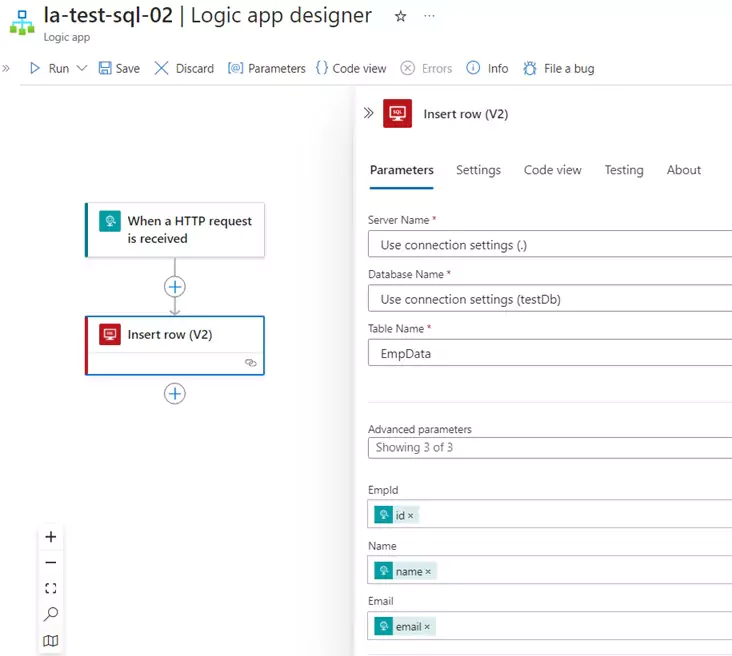
- After setting up On-Prem Data Gateway, click on New step and search for SQL Server.
- Choose Insert row (V2).
- Connect to your on-premises SQL Server using the Data Gateway.
- Save and Test:
- Save your Logic App.
- Use a tool like Postman to send a POST request to the HTTP trigger URL with the JSON payload.
Here's how your Logic App should look:
HTTP Request Payload
{
  "id": "123",
  "name": "Estudy247",
  "email": "estudy24by7@gmail.com"
}
You can download the logic app template from the estudy247 GitHub repository– la-test-http-02